
Can you write a book in Google Docs?
Yes. Many writers do. But there's a reason professional authors often switch to dedicated writing software midway through their first novel.
Google Docs is a fantastic general-purpose tool. It's free, it works everywhere, and collaboration is seamless. But when your manuscript hits 50,000 words, you'll start noticing the gaps.
This guide compares Google Docs and QuillSpace for long-form writing: novels, nonfiction books, and any project measured in chapters rather than pages.
Quick Comparison
| Feature | Google Docs | QuillSpace |
|---|---|---|
| Price | Free | Windows: $1.99/mo, $14.99/yr, or $49.99 lifetime. Mac: $49.99 lifetime |
| Platform | Web (any browser), iOS, Android | Windows 10/11 and macOS 15+ (separate apps) |
| Offline | Requires setup + Chrome/Edge | Works offline by default |
| Chapter organization | Workarounds (headings, tabs, folders) | Built-in folders and chapters |
| Focus mode | Full-screen only | Sentence/paragraph highlighting + typewriter |
| Collaboration | Excellent (real-time, comments, suggestions) | Export to Word (Windows) or PDF for feedback |
| File format | Google's cloud format (exports to DOCX) | Plain text files on your own computer |
| Performance on long docs | Can lag at 50-100+ pages | Fast on large projects |
Writing a Book in Google Docs: What Works and What Doesn't
The Hard Limit
Google Docs has a maximum document size of 1.02 million characters, roughly 150,000 to 200,000 words depending on formatting. Most novels fall under this limit, but it's worth knowing the ceiling exists.
The Real Problem: Performance
Long before you hit the character limit, you'll likely hit performance issues. Writers report lag starting anywhere from 30 to 100 pages, depending on:
- Your device (Chromebooks struggle more than desktops)
- Browser extensions (Grammarly can cause slowdowns at 10-20k words)
- Document complexity (comments, suggestions, formatting)
- Your internet connection
The frustrating part: Google doesn't publish official thresholds. Your experience will vary based on your setup. Some writers draft 80,000-word novels without issues. Others hit lag at 50 pages on a Chromebook.
Organization Limitations
Google Docs wasn't designed for book-length projects. It lacks:
- A chapter/scene "binder" with drag-and-drop reordering
- Metadata for scenes (status, POV, location)
- A way to see your entire book structure at a glance
What Docs does offer:
- Document outline: Auto-detects headings for quick navigation
- Table of contents: Links to headings (needs manual refresh)
- Collapsible headings: Hide sections in pageless mode
- Document tabs: Newer feature that lets you create multiple tabs within one doc
These features help, but they're navigation aids, not a book project management system.
Distraction Factors
Docs is designed for general document editing, which means you see:
- Toolbars and menus (even in full-screen, some UI remains)
- Sharing controls and collaboration indicators
- Comment notifications
- AI suggestions and prompts (increasingly common)
Writers often pair Docs full-screen with browser full-screen (F11) to minimize distractions. It helps, but it's a workaround, not a designed experience.
If those AI prompts are a dealbreaker, see which writing apps won't train AI on your work.
Offline Mode Requires Setup
Google Docs can work offline, but it requires:
- Chrome or Edge browser (not Firefox or Safari)
- The Google Docs Offline extension installed
- Advance setup while you're still online
- Enough local storage for your files
If you forget to set up offline mode before heading to a coffee shop with bad WiFi, you're stuck.
What Google Docs Does Well
Despite these limitations, Docs remains popular for books because:
- It's free: Hard to beat $0
- Collaboration is excellent: Real-time editing, comments, suggestions, Track Changes equivalent
- Version history: Up to 40 named versions per document
- Cross-device access: Write on your phone, continue on your laptop
- Privacy: Google states Docs content isn't used for advertising
Workarounds Writers Use in Google Docs
If you're committed to Docs, here's how writers make it work for books:
Split Your Manuscript
The most common workaround: one document per chapter (or per part/act). This avoids performance issues and makes reorganizing easier.
Pair this with:
- A "master outline" doc with links to each chapter
- A consistent naming convention (e.g., "Ch01 - The Beginning")
- A dedicated Drive folder for the project
Use Headings + Outline Religiously
If you keep everything in one document, format chapters as Heading 1, scenes as Heading 2. The Document Outline sidebar becomes your chapter navigation.
Try Document Tabs
Google's newer document tabs feature lets you create multiple tabs within one file, similar to spreadsheet tabs. You can use tabs for Draft, Outline, Characters, etc.
Caveat: downloading/printing defaults to the current tab, not all tabs.
Be Careful with Add-ons
Writers often add Grammarly, ProWritingAid, or LanguageTool to Docs. These help with editing but can significantly slow down large documents. Grammarly in particular is cited as a performance bottleneck at 10-20k words.
Consider disabling grammar extensions while drafting, then enabling for editing passes.
QuillSpace: Built for Book-Length Writing
QuillSpace takes a different approach. Instead of adapting a general-purpose tool for books, it's designed specifically for long-form writing.
Native Chapter Organization
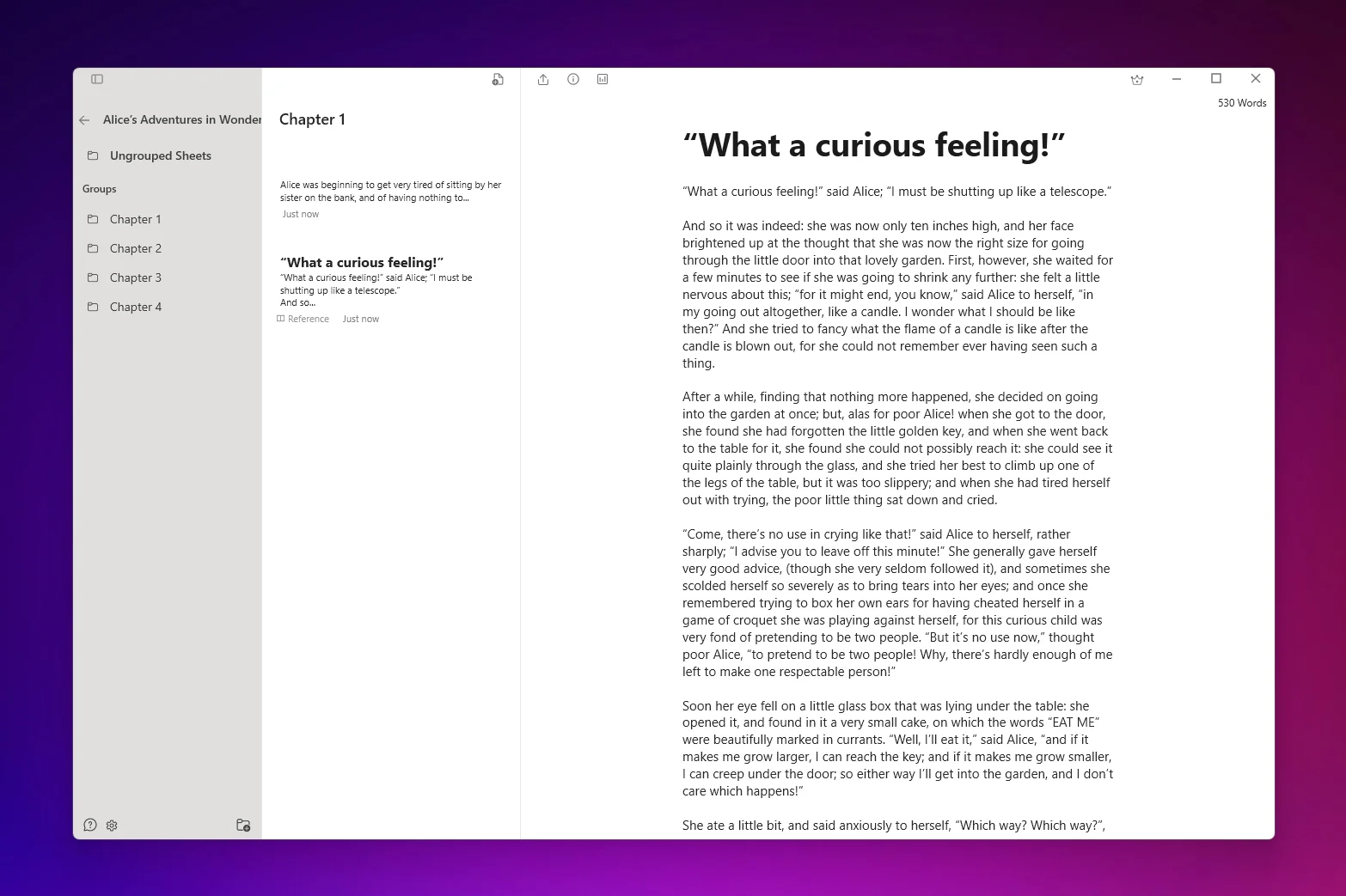
QuillSpace includes built-in project structure:
- Folders: Organize books, series, or categories
- Chapters: Each chapter is a separate document within your project
- Drag-and-drop: Reorder chapters instantly
- Smart filters (Windows): Create saved searches across your entire library
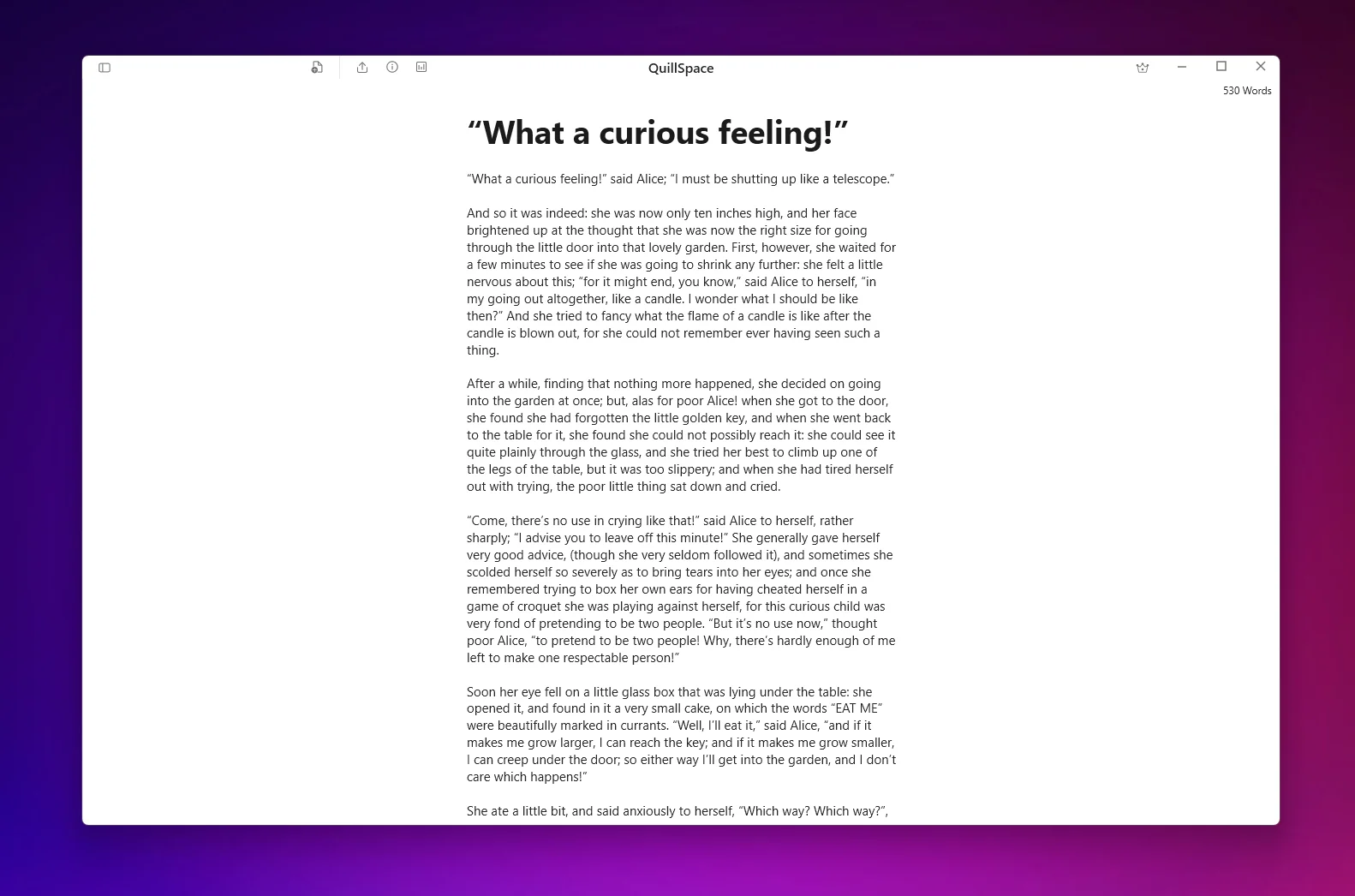
True Focus Mode
Beyond just hiding UI, QuillSpace offers:
- Sentence highlighting: Dims everything except the current sentence
- Paragraph highlighting: Focus on the current paragraph
- Typewriter scrolling: Keeps your cursor vertically centered
- Full-screen (F11, Windows): Complete UI removal
Offline by Default
QuillSpace is a native app for Windows and Mac. It works offline automatically: no setup required, no browser extensions, no "you forgot to enable offline mode."
Your work is saved as plain text files on your own computer, not in someone else's cloud. You can keep your project folder in OneDrive, Dropbox, or any backup you already use.
Performance
Because QuillSpace runs locally and works with individual files, large projects don't create the "one giant document" performance issues that affect Google Docs.
What QuillSpace Doesn't Do
Real-time collaboration. If you need multiple people editing simultaneously with comments and suggestions, that's Google Docs' strength.
The typical workflow: draft in QuillSpace, export to Word (Windows) or PDF when you need feedback, then finish editing in Word or Docs.
Web-Based vs Desktop: The Real Trade-off
The Google Docs vs QuillSpace comparison reflects a broader choice: web-based tools vs desktop apps.
Web-Based Writing (Google Docs, Novlr, Dabble)
Pros:
- Access from any device with a browser
- Automatic sync across devices
- Collaboration features built-in
Cons:
- Requires internet (offline modes have limitations)
- Performance depends on browser + extensions + connection
- Files stored in vendor's cloud (portability concerns)
Desktop Writing Apps (QuillSpace, Scrivener, iA Writer)
Pros:
- Works offline without setup
- Consistent performance regardless of file size
- Files stored locally in standard formats
- No browser overhead or extension conflicts
Cons:
- Platform-specific (Ulysses is Mac only; QuillSpace has separate Windows and Mac apps)
- Manual sync setup if you want cloud backup
- Collaboration requires exporting to DOCX
What Professional Authors Actually Use
No single tool dominates professional writing. What you see consistently is tool chaining:
- Draft in a dedicated writing app (Scrivener, QuillSpace, Ulysses)
- Collaborate/edit in Word or Google Docs (because editors expect Track Changes)
- Format/publish in specialized tools (Vellum, Atticus) if self-publishing
Mark Manson (author of "The Subtle Art of Not Giving a F*ck") has said he writes in Scrivener because he prefers jumping around and organizing ideas without constant scrolling: exactly the kind of workflow dedicated writing apps enable.
The pattern: drafting apps win during writing and structuring. Word/Docs win during professional editing and submission.
Best Websites to Write a Book (If You Want Web-Based)
If you're searching for the best website to write a book or best site to write a book, these platforms rank highest in 2026:
- Reedsy Studio: Free, chapter/scene organization, goals, cloud sync
- Google Docs: Free, excellent collaboration, requires workarounds for structure
- Novlr: Writing platform with goals and progress tracking ($6-14/mo)
- Dabble: Plot Grid, story notes, offline-capable ($9-29/mo)
If you want a desktop app with better organization and focus features, consider QuillSpace (Windows and Mac), Scrivener (Windows/Mac), or Ulysses (Mac).
Who Should Use Google Docs for Books?
Google Docs is a solid choice if:
- You collaborate heavily with co-authors or editors
- You switch devices frequently and need instant access everywhere
- Your manuscripts are under 50,000 words
- You don't mind building your own organizational system
- Budget is a primary concern (it's free)
Who Should Use QuillSpace?
QuillSpace is a better fit if:
- You're on Windows or Mac and want a native, fast experience
- You write long-form (novels, nonfiction books, series)
- You want built-in chapter/project organization
- You prefer distraction-free focus features
- You want offline reliability without setup
- You want your work saved as plain text files on your own computer
FAQ
Can you write a novel in Google Docs?
Yes, many writers do. Google Docs can handle up to ~150,000-200,000 words. However, you may experience lag on longer documents, and you'll need to create your own organizational system using headings, folders, or document tabs.
At what point does Google Docs start lagging?
It varies widely. Writers report lag starting anywhere from 30 to 100+ pages, depending on device, browser extensions (especially Grammarly), and document complexity. There's no official threshold from Google.
Does Google Docs work offline?
Yes, but it requires setup: Chrome or Edge browser, the Google Docs Offline extension, and advance configuration while online. QuillSpace works offline by default with no setup.
Is Google Docs safe for writing a book?
Generally yes. Google states it doesn't use Docs content for advertising. Version history protects against accidental deletions. The main risk is performance issues on very long documents or browser/sync problems during offline transitions.
What do professional authors use to write books?
It varies. Many use Scrivener, Ulysses, or similar dedicated writing software for drafting, then switch to Microsoft Word for editing with publishers (because editors expect Track Changes). Google Docs is popular for collaboration and short-form writing.
Can I import Google Docs into QuillSpace?
Yes. Export your Google Docs as .docx or .txt, then import into QuillSpace. For Markdown workflows, you can also copy text directly or use a converter.
Ready for More Than a Word Processor?
QuillSpace gives you book-level organization with distraction-free focus.
Free to start. Windows and Mac are separate apps, purchased separately.
Disclosure: This article is published by QuillSpace. We've done our best to provide honest, accurate comparisons. Pricing and features are current as of October 2026 and sourced from each product's official website.
Last updated: October 6, 2026